Why tracking goals gets messy fast
I set up ClickUp Goals thinking they would be neat little containers that showed me exactly where my team stood. The problem is that as soon as you throw in more than a couple of targets, it starts spiraling. For example, I once had a simple goal of publishing five blog posts by the end of the month. Easy, right? But then someone added sub-goals for each blog, which were linked to tasks that weren’t even in the same Folder. Suddenly my “progress bar” showed 80 percent complete even though only two actual posts went live. That progress bar basically lied to me, and I had to click through every nested layer just to see reality. 😛
The deeper issue is that Goals in ClickUp are not automatically pulling live data the way I assumed. Some updates are manual, others are tied to a custom field, and if I forget which one I chose, I have to dig around wondering why nothing is moving. And yes, this means I have a Zapier tab constantly opened to patch it together in the background.
Creating measurable goals in ClickUp
The first lesson I learned is you cannot just type “finish website redesign” as a Goal and expect ClickUp to magically know when that’s done. ClickUp needs measurable units. Inside the Goal setup, you choose Targets. Targets can be either numerical (like “20 leads”), task-based (like “5 subtasks completed”), or true or false (like “did we launch?”). Picking the right type for each situation really matters.
For instance—if my team is writing newsletters, I link the Goal to the number of tasks completed in a List called Newsletters. That way, every time someone drags a card to Done, the Goal inches forward on its own. But if I try to track something like revenue, I use a custom field update instead. Tracking with numbers requires a custom field connected to the Goal, otherwise you’ll be stuck updating progress manually, which you will forget about by the second week.
When I was teaching a new hire, I showed them a quick table on a shared doc to explain what Target type fits different situations:
| Target Type | When it Works Best |
|————-|——————-|
| Tasks | Repeated deliverables like posts, tickets, or calls |
| Numbers | Metrics like revenue, hours logged, or signups |
| True False | Single-event milestones such as launching a site |
That table alone saved me a load of explaining each time.
Unexpected behaviors I ran into
There are things ClickUp does with Goals that don’t line up with what the documentation says. For example, if you connect a Goal to multiple Lists thinking it will count only the tasks inside those Lists, you’ll later discover that completed subtasks mess with the count. I had a goal that was supposed to close once five big tasks hit Done, but because subtasks were included in the calculation, it jumped ahead way too early. At first, we celebrated the success, then realized the actual work wasn’t complete. Nothing like a fake success party to kill momentum ¯\_(ツ)_/¯.
Another thing that tripped me up is permissions. You can create a Goal at the Workspace level and everyone thinks they can update it, but unless they’re sharing the right Folder or List, their progress doesn’t even register. I kept wondering why one designer never moved the bar—turns out she was dropping finished tasks into a different Space. It was like watching her throw things into a black hole.
How to connect tasks properly
To avoid those black hole situations, I started forcing myself to double check the task source when building a Goal. In practice, this means:
1. Create the Goal and add a Target.
2. Choose the Target type. If it’s task-based, explicitly connect the correct List or Folder.
3. Go into that List and make sure the task status you are monitoring actually exists there. If the List uses “Completed” but your Goal is waiting for “Done,” guess what… nothing moves.
This seems simple, but I’ve broken my own dashboards by forgetting it. The most annoying case was when we had duplicates of the same List template in different Spaces. My Goal looked like it was connected to the right one, but the team was delivering tasks inside a clone. Of course the progress bar didn’t update. Took me two hours to realize I wasn’t crazy, just linking to the wrong copy.
Using custom fields with Goals
Whenever you want to track numbers—like sales calls or revenue—you need to use custom fields. In ClickUp, custom fields are those extra data columns you add to a task, like a dollar amount or a checkbox. The way you tie it into a Goal is by choosing the numerical Target type and mapping it. This can be powerful but glitchy.
For example, I tried tracking closed deals by creating a currency field per task. Then I linked my Goal to that field with the total type. At first it worked cleanly, but then one teammate renamed the field inside their Board view. Suddenly, the Goal couldn’t find the field and froze with an old number. No warning, nothing—just wrong data staring at me all week until I poked at why it stopped moving. Lesson here: lock the field and tell your entire team not to rename it, even though they can.
On the bright side, once your field is stable, the live updates feel satisfying. When a team member enters “$500” into a closed deal task, the Goal bar moves instantly, and you avoid the dreaded manual update. That alone saves a ton of clicks 🙂
Reviewing team progress in real time
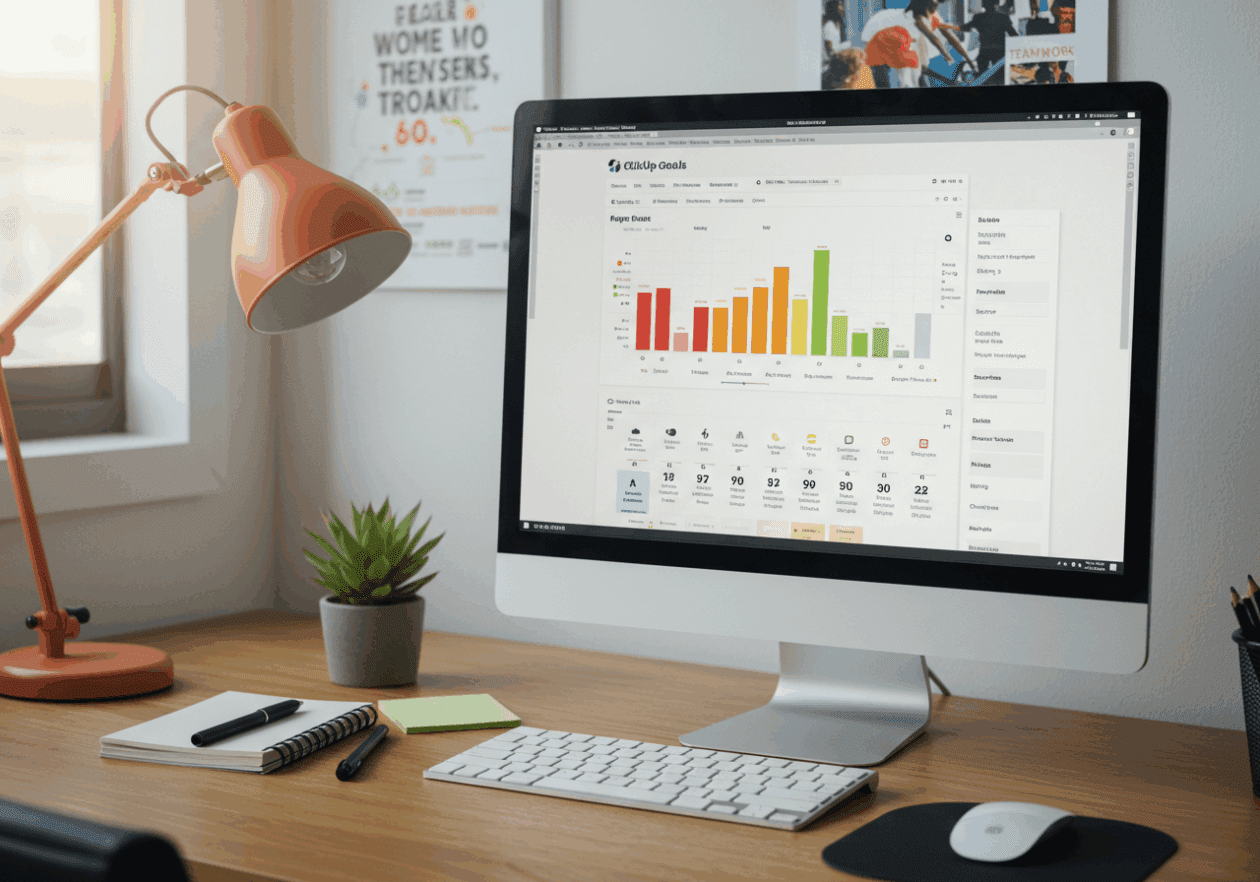
Opening the Goals view at the top left of the sidebar gives you a dashboard-like screen. You see all Goals and their Targets in one place. I usually collapse everything except the ones we’re counting on this week, otherwise it looks like a Christmas tree of progress bars. What’s both nice and dangerous is the percent display. Everyone subconsciously chases that percentage, even when it’s inaccurate. If it says 90 percent done, no one investigates whether it’s actually 90 percent of the right work. You have to open the detail panel, which shows what’s being counted.
A real trick I use: create one Goal called “Sanity Check” where I add a couple fake test tasks or numbers just for myself. If those update correctly, I know everything else is wired properly. If the Sanity Check is broken, the rest must be, too. Sounds silly, but it’s easier to monitor than waiting until something feels off.
Automating updates with integrations
Eventually I got tired of manually adding numbers into custom fields. That’s where external integrations come in. Zapier lets you push external data into ClickUp automatically. For example, when a Stripe payment hits, Zapier adds the amount into a ClickUp task field, which then rolls into my Goal. The headache here is that Zaps silently fail. I’ve had days where the Zap ran twice and inflated my total, so the Goal said we’d doubled revenue. People were high fiving, but it was completely fake. Always double check your Zap history before showing progress screenshots.
If you prefer something more stable, Integromat (now called Make) also works well, but it’s trickier to set up at first. The good news is that ClickUp posts their API openly, so if you know someone comfortable coding, you can bypass Zapier altogether.
I once read about someone connecting Google Sheets to ClickUp for the same reason, and honestly, that feels like duct tape on duct tape. But then again, I do the same thing when I’m desperate.
Practical setup that actually worked
After breaking more than one dashboard, I settled on a straightforward routine. Each major deliverable gets a list. Each list connects to a Goal using task completion. If there’s a number, like revenue or call time, I use a locked custom field and only link that one. To prevent confusion, I add a prefix to Goals like “DeptA Q1 Target.” That way, if someone duplicates them (which happens), at least I know which is the original.
It isn’t perfect. The data can lag, and sometimes ClickUp randomly shows a different percent unless you refresh. But compared to spreadsheets, it’s still smoother. At least the team can open one screen and feel like we’re aiming at the same scoreboard.
Why you should double check everything
When you start relying heavily on Goals, you’ll notice that the stronger your team watches the bar move, the more harmful wrong data can be. A single disconnect can make everyone think they’re winning or losing when they’re not. My worst case was when the revenue Goal didn’t update for an entire week—causing the team to think we’d fallen behind. Panic set in until I realized the custom field link had been dropped altogether. If we hadn’t spotted it, we might have reallocated resources away from projects that were actually doing fine.
So yes, the tool is helpful, but only if you keep checking the plumbing in the background. Consider it like watching your internet router—just because the light is green doesn’t mean the WiFi isn’t flaky. 🙂