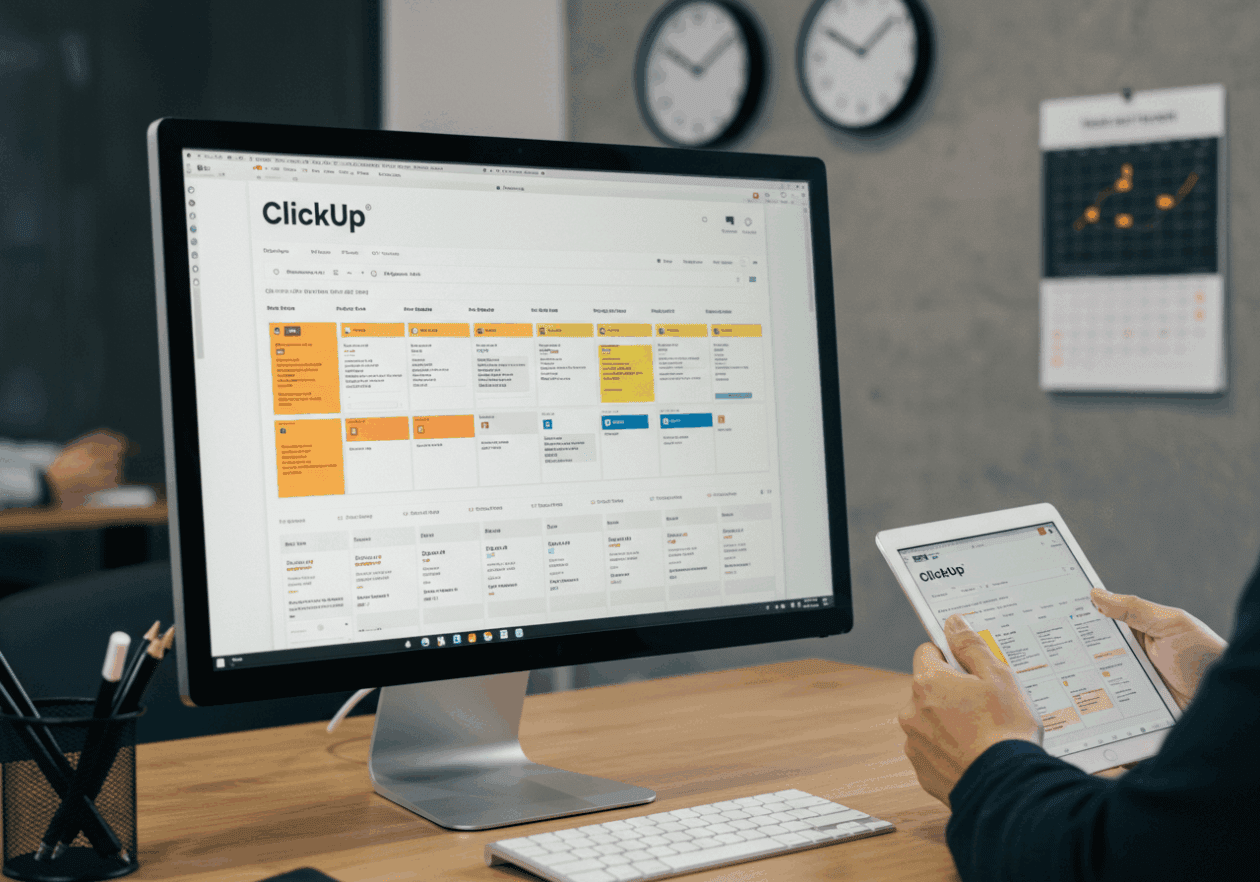
Why my ClickUp reminders disappeared
I swear nothing makes me more nervous than waking up, opening ClickUp, and realizing none of the little reminder bubbles I set up are showing anymore. I had tasks due that afternoon, but no ping on my phone, no friendly nudge in the desktop app, nothing. At first, I thought maybe Do Not Disturb mode on my laptop ate them (it has killed Google Calendar notifications before), but nope, the real culprit was buried two menus deep in ClickUp. There’s a notification toggle that doesn’t just silence emails, it turns off the in-app reminders completely. I definitely didn’t remember touching that, which is the story of half my workflow problems. If you’re in the same boat, always check the Notifications settings in ClickUp first instead of tearing apart your Zaps or rebuilding automations unnecessarily.
Setting up deadlines with auto reminders
When you create a task in ClickUp, there’s a little calendar icon that sets the due date. That part is obvious. But if you don’t also set a reminder tied to that due date, the task will just sit quietly until it’s overdue. What I ended up doing was clicking the three dots menu on the task, scrolling until I saw “Reminders,” and then choosing how early I wanted the notification. I tested with one task due at 3 PM and set a reminder for one hour before. It worked on my laptop but not on my phone until I downloaded the mobile app and gave it permanent notification permissions. So if your reminders seem broken, check your phone’s system settings too because some Android versions will put ClickUp to sleep if you don’t.
Using recurring tasks to stay sane
One trick that helped me was turning weekly deadlines into recurring tasks. When I first set this up, I made the mistake of choosing “repeat exact date” instead of “repeat relative.” The difference is sneaky. With relative, if you complete a task on Wednesday, the new one will pop up the next Wednesday. With exact, if the task was due on the first of the month, it just kept spitting out the first—whether I was late or not. My reminders were then showing up at weird times, like I’d be reminded about a task that was technically already overdue. If that sounds familiar, double check how the recurrence is scheduled. I probably lost two hours adjusting dates before clicking the right option.
Fixing missed notifications with email alerts
There was one week when none of the push reminders triggered. Out of desperation, I switched on email alerts for deadlines. That way, even if the app itself went silent, I still had an unread email staring me down. Not perfect, since I already drown in email, but I never missed a deadline that week. Later, I turned on Slack notifications using ClickUp’s integration. Honestly, seeing a little task reminder pop into my general work Slack channel forced me to deal with it faster. If you’re considering external notifications, you don’t need to overthink it—flip on one channel as backup, whether that’s email, Slack, or even Microsoft Teams.
When Zapier is the backup plan
I once hacked this with Zapier after a streak of ClickUp reminders vanished again. I built a Zap that triggered on upcoming due dates in ClickUp, then sent me a text message through Twilio. It wasn’t pretty, but it worked. The issue was ClickUp sometimes fired duplicate webhook calls, so I’d get two identical texts at once. If you’re not ready to deal with that chaos, just stick to in-app reminders. But if you rely on never missing something—like a freelance invoice that cannot be late—this DIY backup helps. I still leave that Zap disabled most of the time, then flip it on when I notice ClickUp’s native system acting weird.
Troubleshooting the phantom reminder bug
One of the strangest bugs I hit was where the reminder existed, but the notification banner was invisible. Like, when I checked my notification history on Windows, it was there, but I never saw it appear live. The reminder icon stayed gray too. Restarting fixed it once, but the long term solution was flipping off the Chrome ClickUp extension. Somehow that was blocking half the UI. Once disabled, reminders popped up normally. So if you’re stuck, try running ClickUp in Incognito mode with no extensions. It’s the least glamorous workaround, but you’ll immediately know if the issue is inside ClickUp or something layered on top of it.
Testing reminders with fake deadlines
Whenever I’m about to restructure my reminders, I make fake test tasks. Something like “Buy ice cream” due 30 minutes from now, just so I’m not basing everything on a critical real deadline. I usually create a batch with staggered reminders—15 minutes, 30 minutes, 1 hour—and wait to see which fire on desktop vs mobile. Half the time one doesn’t appear, which helps catch whether it’s just a notification settings mess or a genuine bug. If you never bother to test like this, you’ll end up finding out at the worst moment (I did, during a client call… not fun).
Remembering the hidden reminder settings
The setting that saved me in the end was buried in my “Me” profile inside ClickUp. There’s a little toggle for “Show reminders in notification tray” that I swear I never noticed the first time. Mine was off. Turning it on immediately made all my overdue reminders flood back in at once—like an avalanche of guilt. But at least I didn’t have to rebuild the Zaps again 🙂 If you’ve checked your task due dates, your desktop notifications, your phone settings, and it still seems broken, go into your personal profile settings because that’s where the most forgotten option hides. That was the thing I overlooked for weeks until one late night tab sweep rescued me.
If nothing else works, you can always keep an external backup trigger with a tool like Zapier or depend on Slack integrations. But if you just want normal reminder behavior, the little switches inside ClickUp itself are usually the real solution, even if it takes three coffee-fueled hunts to find them ¯\_(ツ)_/¯